VNC Remote Login Device Tool
- Download:
VNC Viewer Official Link - Install:
2.1. Double-clickVNC-Viewer→OK→Next

 2.2. Accept terms →
 Next→Next

 2.3. Click
 Install→Finish


- Launch:
Start Menu→ Search "vnc" → OpenRealVNC Viewer

- Login Device
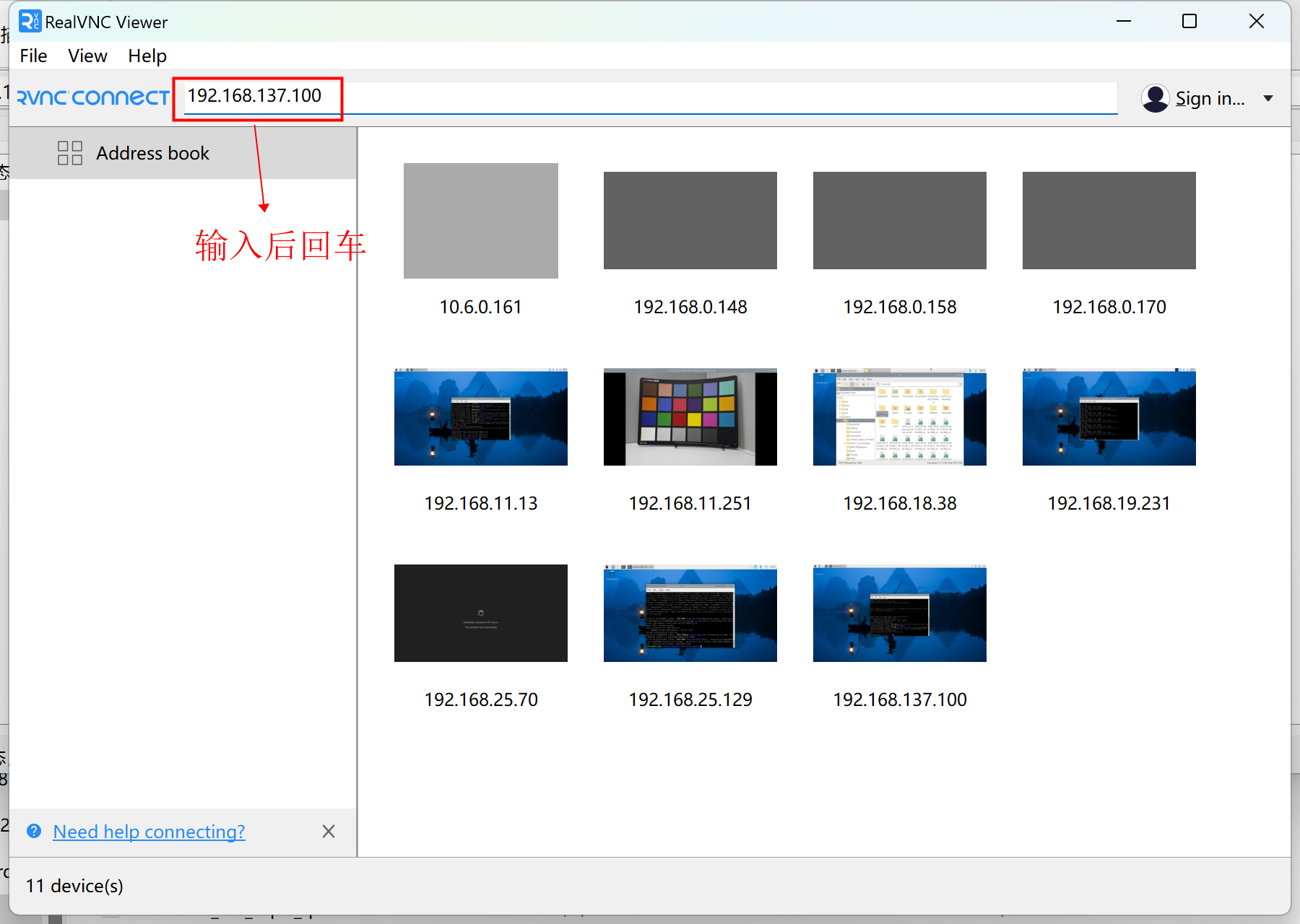
Enter the scanned IP address of the all-in-one machine, "192.168.xxx.xxx", and press Enter.
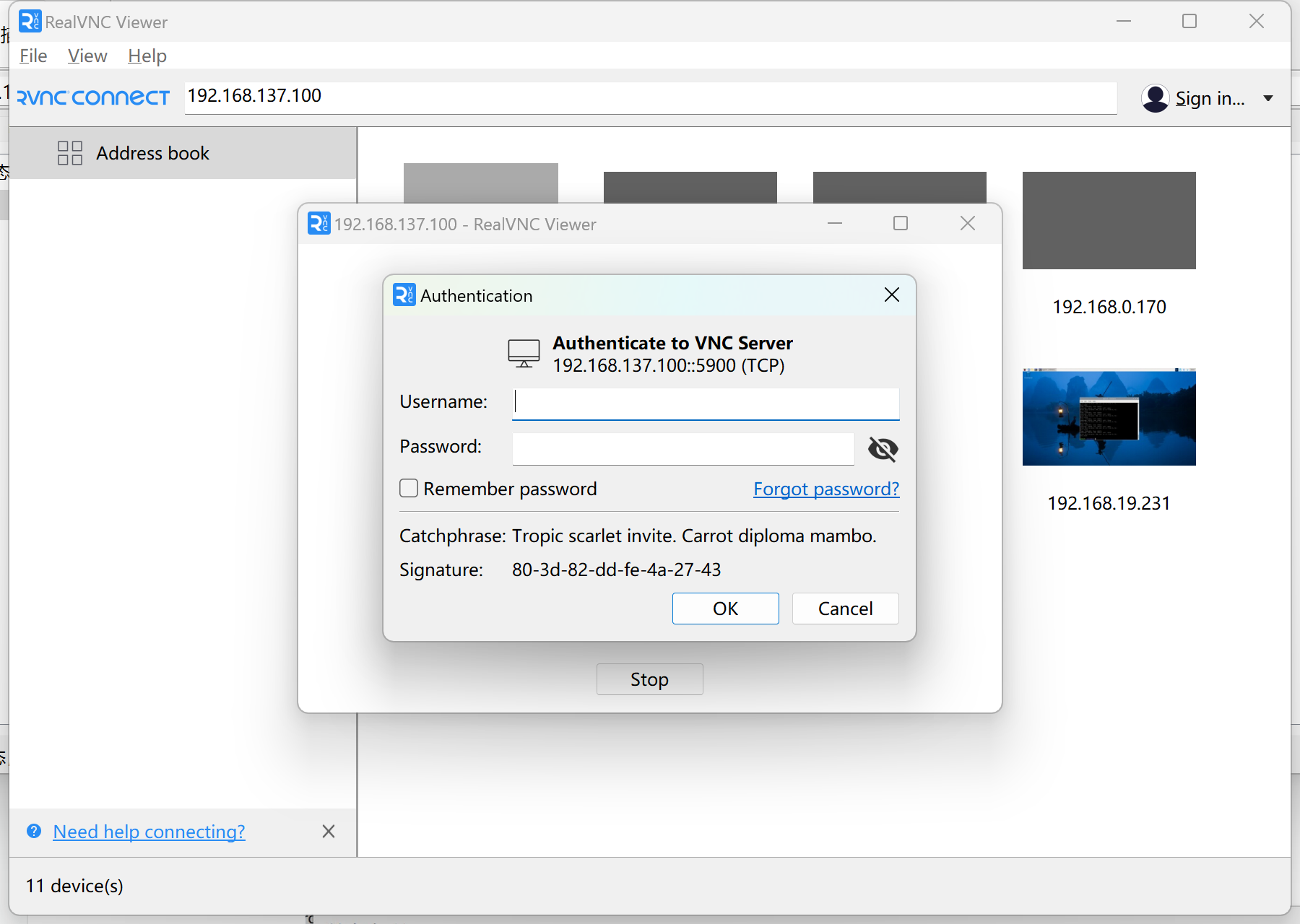
A window will pop up asking for your username and password.
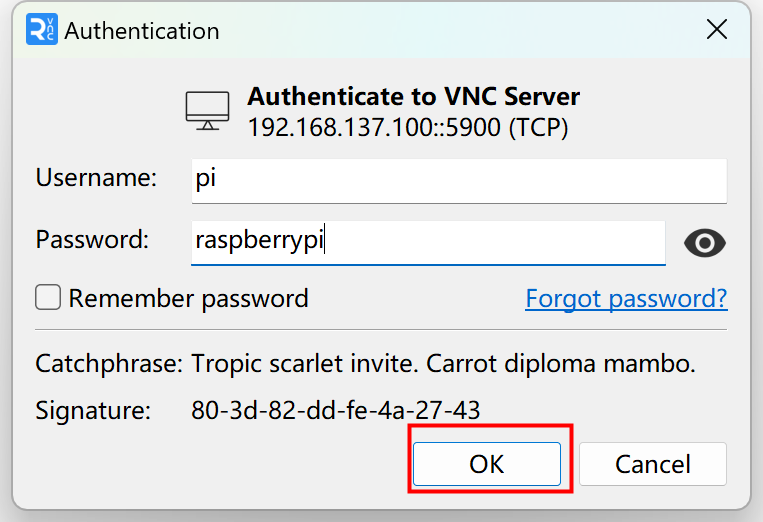
- Username: pi
- Password: raspberrypi
- Click "OK".
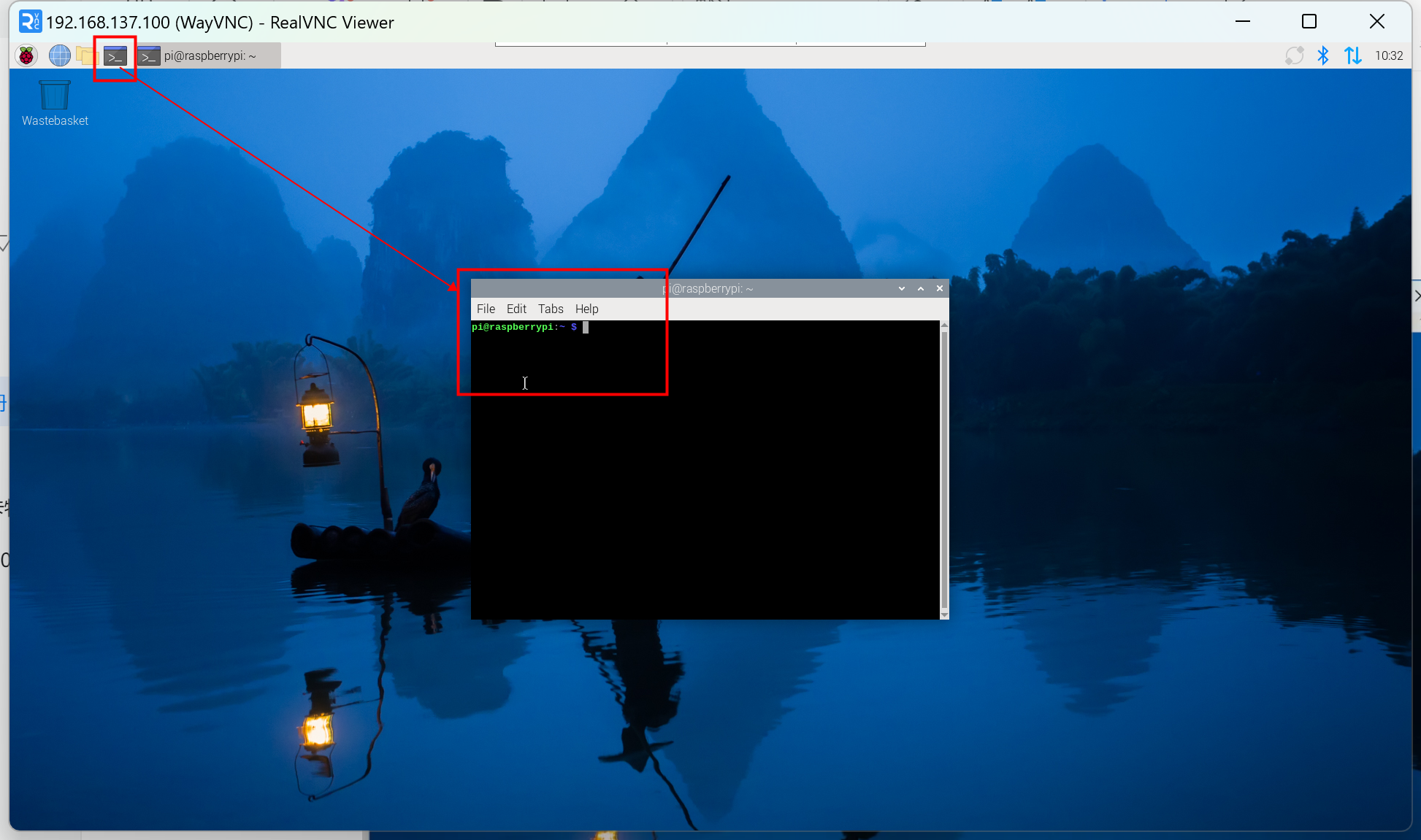
After successful connection, open the terminal as shown below.